Wired Connection
Thumbstick Recalibration
Controller Reset
If you are experiencing lag/ghosting issues with your SCUF Impact controller, it's possible something is interfering with the internal Bluetooth antenna. We'll test for this anomaly by first using a wired connection, performing a thumbstick recalibration, and controller reset.
Wired Connection
- Connect your controller to the PlayStation 4 console via a micro USB cable.
- Navigate to the PS4 settings and ensure your device communication method is set to USB cable.
Thumbstick Recalibration
- Turn off the PlayStation 4 console and controller. Please make sure the console is completely off and not it rest or standby mode.
- Press the thumbsticks in and hold for 30 seconds. Do not apply too much pressure, just enough so that they click in place.
- After 30 seconds have elapsed, release and rotate the thumbsticks clockwise followed by counterclockwise at least five complete circles each.
- Gently press and hold the thumbsticks for an additional 30 seconds to make sure they are firmly secured.
Controller Reset
- Turn off the PlayStation 4 console.
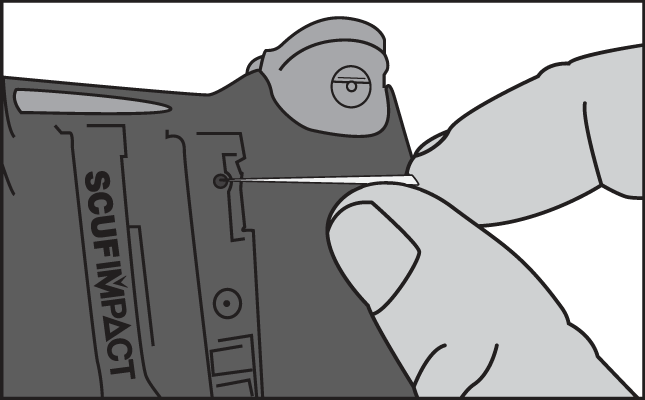
- Locate the small reset button hole on the back of the SCUF Impact. This is located under the right paddle (P4).
- Use a small, unfolded paper-clip or something similar to push the button (the button is inside the tiny hole). Hold the button down for a 2 - 3 seconds and release.
- After resetting the controller, re-pair the SCUF with the PlayStation console by connecting the USB cable to the controller and the system, and turning the PS4 console on.
- Press the PS button on your controller to log in to the PS4.